
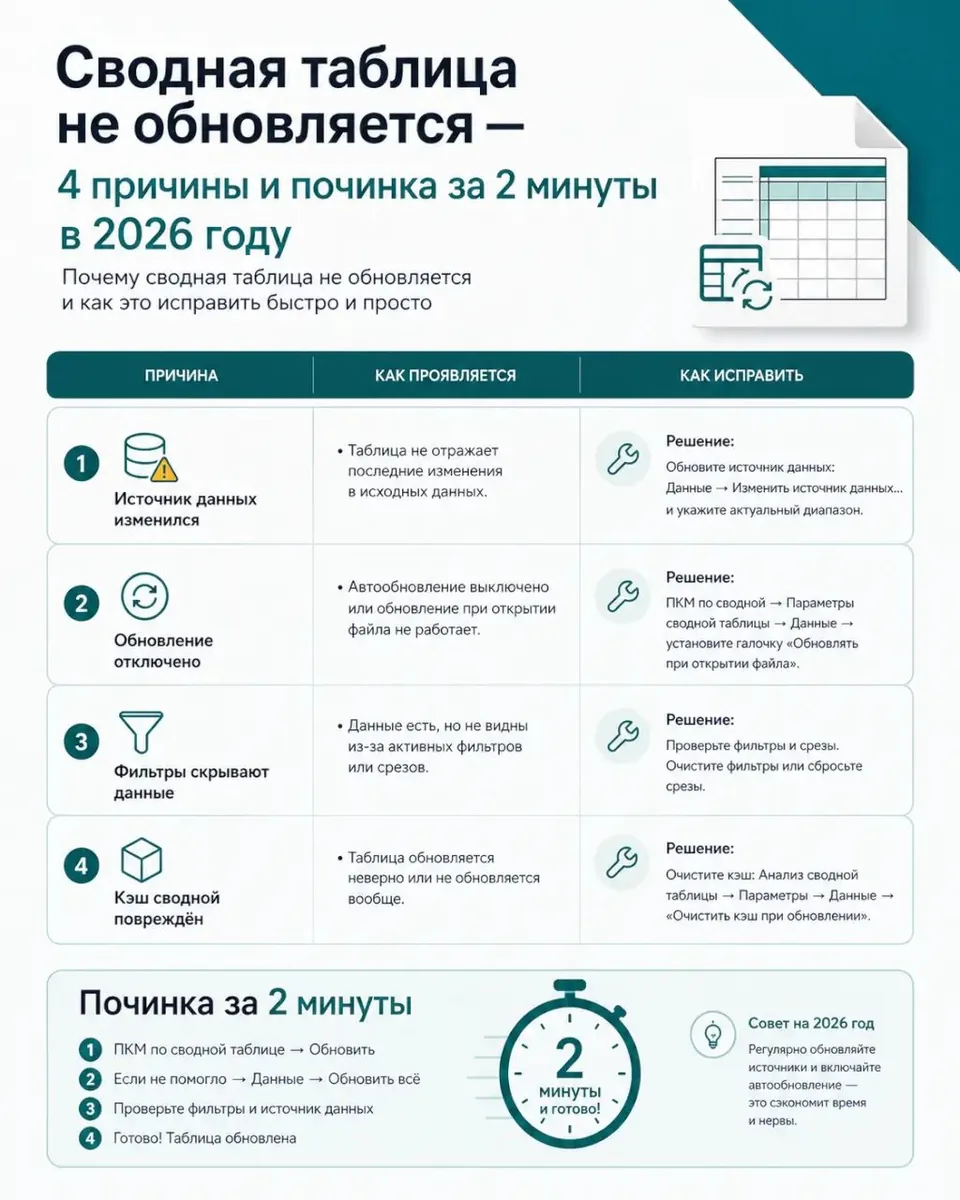
Click on the pivot table, open "Analyze" → "Change Data Source" and specify a new range that includes all rows.
The problem occurs when the source data has expanded, but the pivot table continues to read the old boundaries. New rows or columns are simply ignored.
To prevent this from happening again, convert the source range into a "smart table" (Ctrl+T). It expands automatically. For other common errors when updating data, for example, when Excel treats dates as text, there are quick solutions.
🔗 Source: excel.rf
Comments
0No comments yet.
Sign in to join the discussion.